Your New York QSO Party team is happy to announce a new tool we’ve released that benefits all state and provincial QSO parties–live mobile and portable station tracking!
It’s available now at mobiletracker.stateqso.com
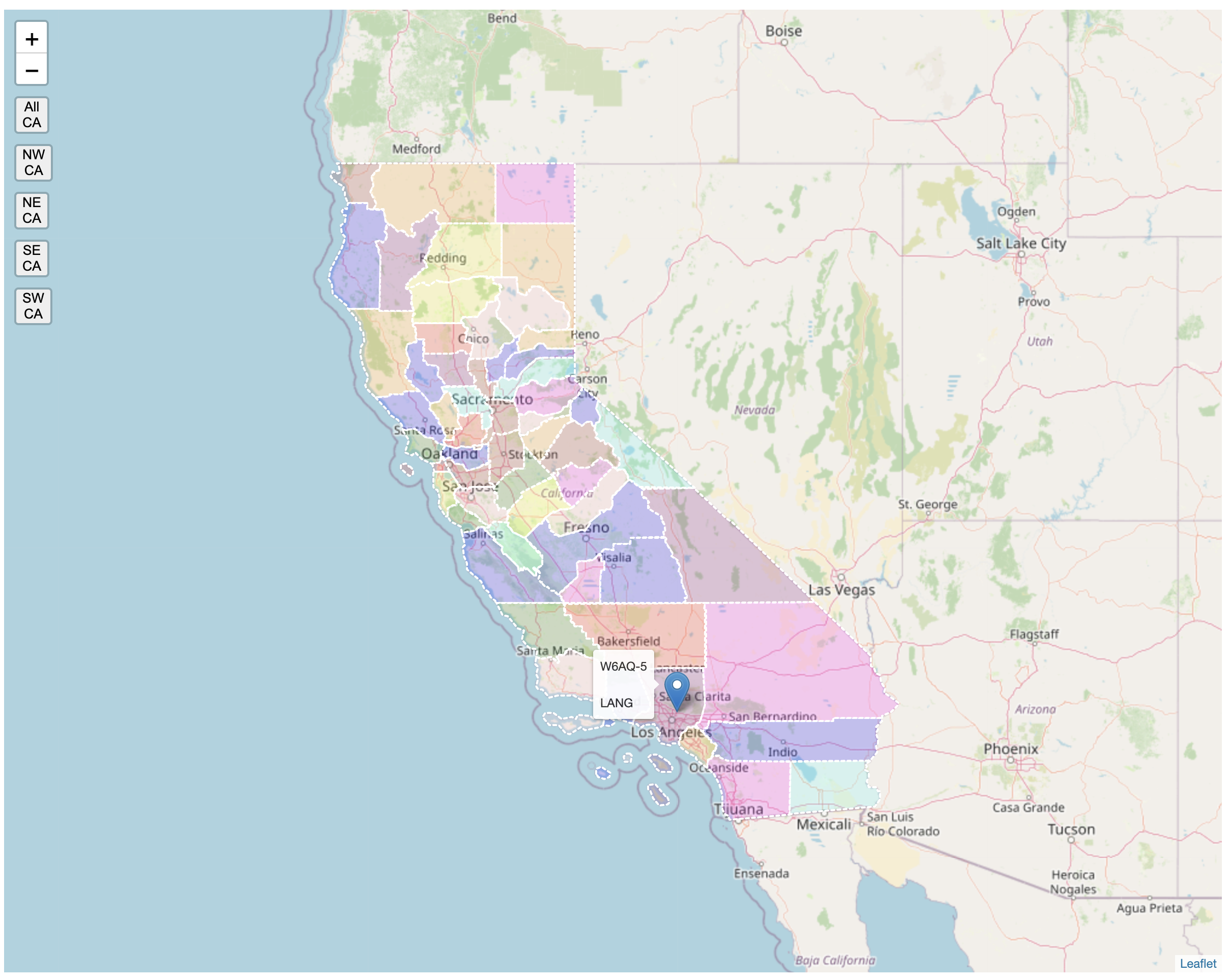
The site is in two parts: A zoomable main panel and a table showing active stations. For California:

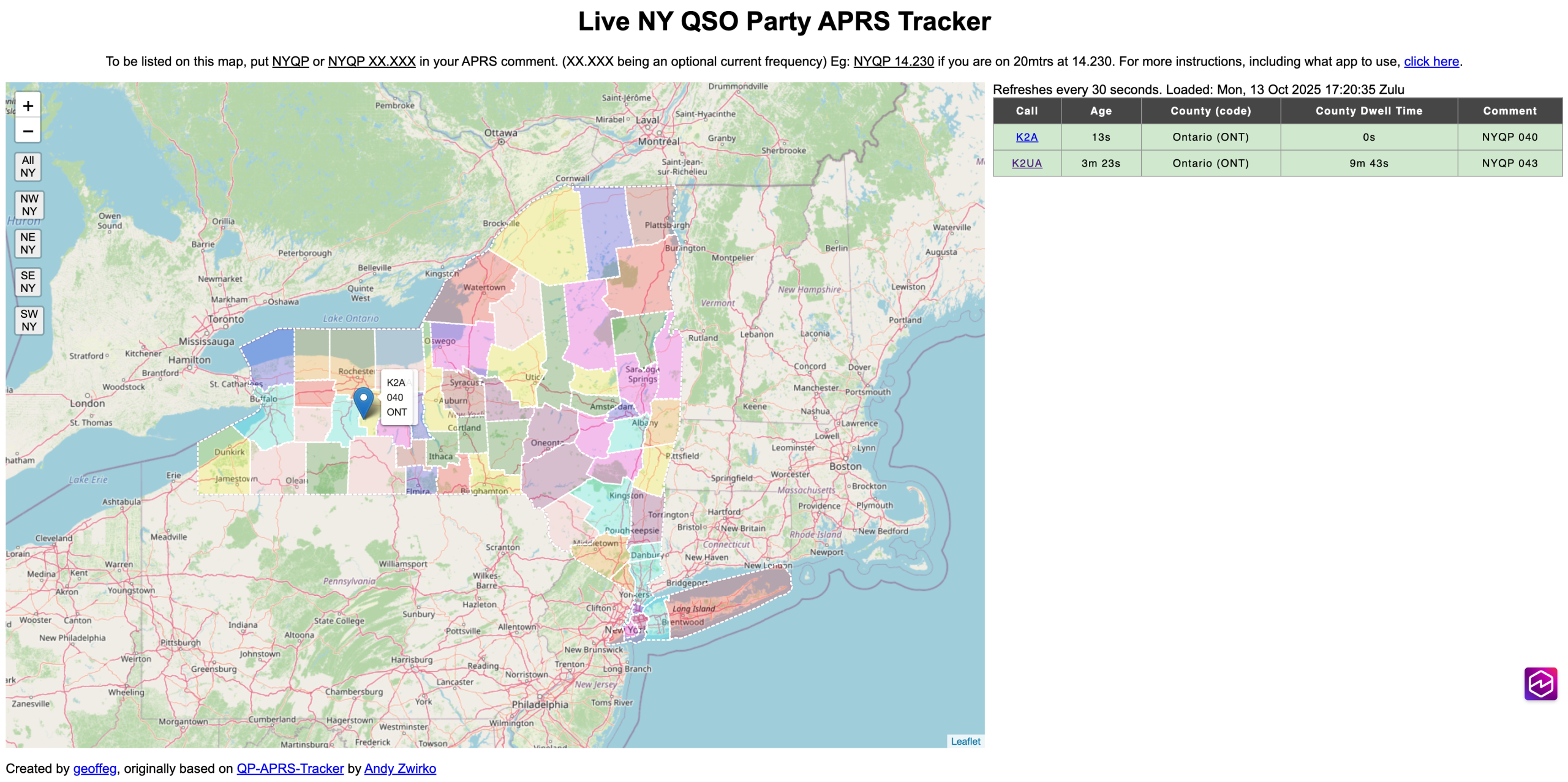
Depending on the browser (desktop or mobile), the table appears to the right or below the map, respectively. In the table, the call sign is a clickable link to the call sign’s QRZ page.
For New York:
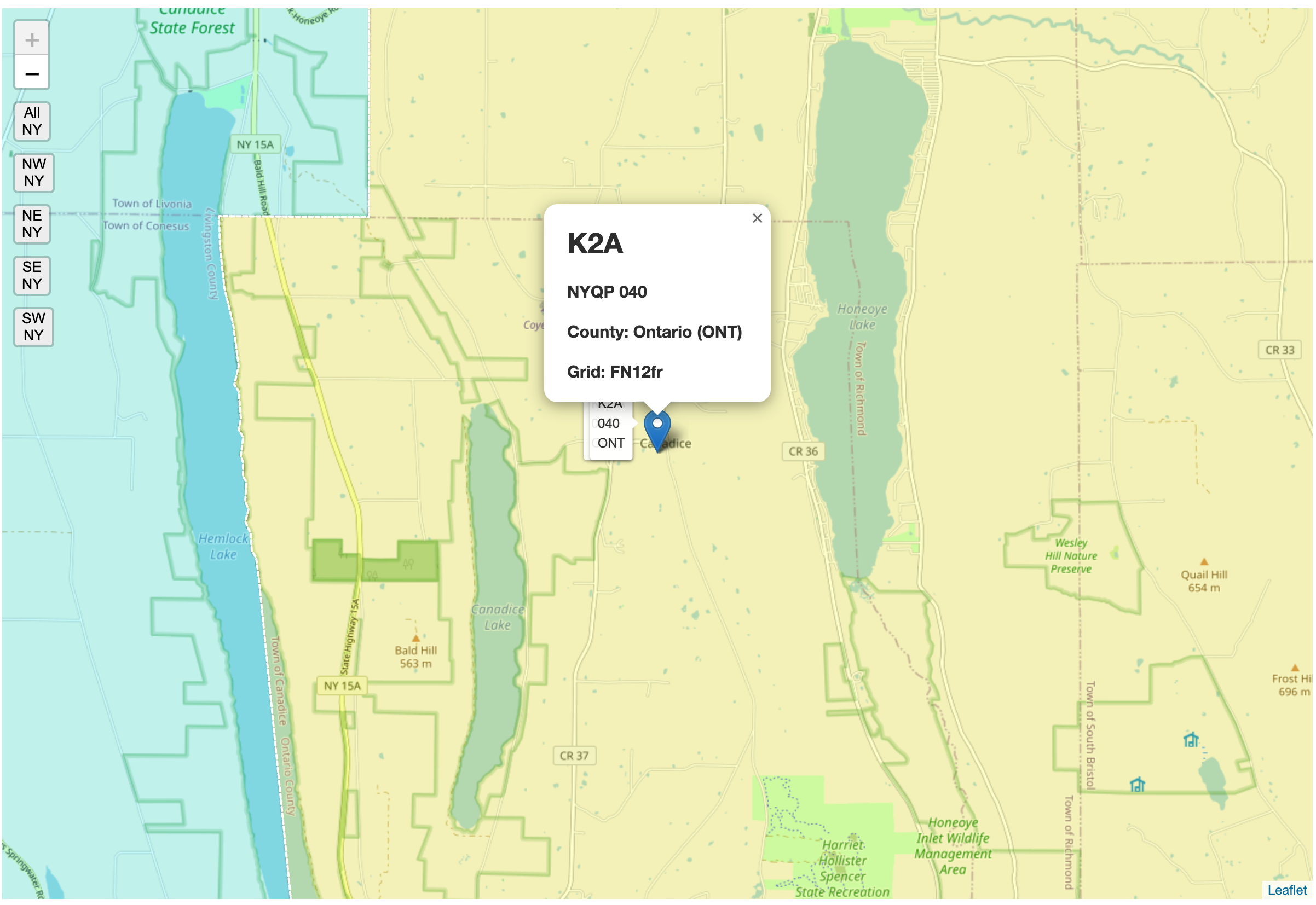
If you click on a station’s pin, the map will zoom in all the way and show you more details, while continuing to track in real time:
Usage
For chasers:
- Load the mobile tracker website, preferably on its own monitor.
- Watch stations on the map to see their real-time locations as they run their routes and work them on the air as they move from county to county. Refer to the table on the right side and the icons on the screen to see the county abbreviation for their current locations.
- Click on the station call in the table to visit the station’s QRZ page. Many stations post their routes and other details of their state QSO party operations there.
- Click on the pins to see details about the current locations of each station, including their 6-digit grid squares.
New for 2026 – a series of “breadcrumbs” showing the travel of the station will now also appear. - In state QSO parties that allow self-spotting, mobiles can post their current frequencies as part of their comments. You’ll see this information in the info on the map and the table.
- TIP: If a station isn’t on the frequency displayed on the map, check other bands on the same decimal frequency. For example, if the map says 14.043, also check on or near 7.043 and 21.043. The station may have moved to another band without updating the comment field.
For mobiles:
- Load an APRS client (we recommend APRS TX for the iPhone and APRS Droid for the Android). Note: Not all APRS clients populate the map. properly, so always check to be sure yours is working. We will work to improve APRS client support over time.
- Set your call sign to the call you’re using on the air in the contest.
- Generate an APRS passcode for this call sign using one of the several websites that provide this service, such as https://apps.magicbug.co.uk/passcode/
Note: if you use a special callsign, you need to register that separately. - Set your APRS comment text to the contest name. The format is displayed at the top of the mobiletracker.stateqso.com page. NOTE: It varies from contest to contest. For contests that allow self-spotting, frequency is optional but recommended.
- For contests that do not permit self-spotting for mobiles, only the contest abbreviation (such as CQP) is required for the tracker to pick you up and track you on the map. In contests that do permit self-spotting for mobiles, such as NYQP, you may use either the contest name alone or the contest name and a frequency, so either NYQP or NYQP 7.230 or even NYQP 230 (if you’re using .230 on every band) will work.
New for 2026 – you may enter a series of frequencies separated by spaces. These will scroll on the tracker website.
The page heading shows what text to include in the APRS comments for the particular contest in order for the site to pick up your APRS packets and post your location on the map (don’t include the quotation marks, just the text for the contest, as shown):

Background
Around 2020, Andy Zwirko, K1RA, created the original live mobile tracker for the Virginia QSO Party. He and Rus, K2UA, had some initial conversations about adapting this tool to other QSO parties a few years ago, but it was out of reach technically until earlier this year.
In early 2025, Geoff Gallaway, KC8FDU, adapted and enhanced K1RA’s code for the Missouri QSO Party and made it work really well for MOQP on a local server. A lot of chasers of MOQP mobiles were duly impressed and greatly helped by it during the MOQP 2025 contest! Soon after, K2UA got in touch with Geoff and the two partnered to adapt it for use in all state QSO parties under one URL and launch it on AWS so it can be easily adopted.
Testimonial
“This page will become a new standard for mobile tracking in all QSO Parties. There is no doubt in my mind. It is a game changer. I’m 100% certain that others will latch onto this for their QSO Parties as quickly as I did for CQP.”–Dean, N6DE, California QSO Party Chairman
A note about self-spotting rules: Some state QSO parties do not allow self-spotting. California is one of them. So for CQP, you’ll notice a different header and spotting format. Refer to the text at the top of the screen to see what is required for the map to pick you up.
Note: This website is intended for use by mobiles and portables that constantly move or change locations during the contest. Fixed stations–please use other methods of spotting.